Steam Deck: How To Run Sega Game Gear Games
Author : Adam
Feb 10,2025
This guide details how to install and utilize EmuDeck to play Sega Game Gear games on your Steam Deck, maximizing performance through Decky Loader and Power Tools.
Before You Begin: Essential Preparations
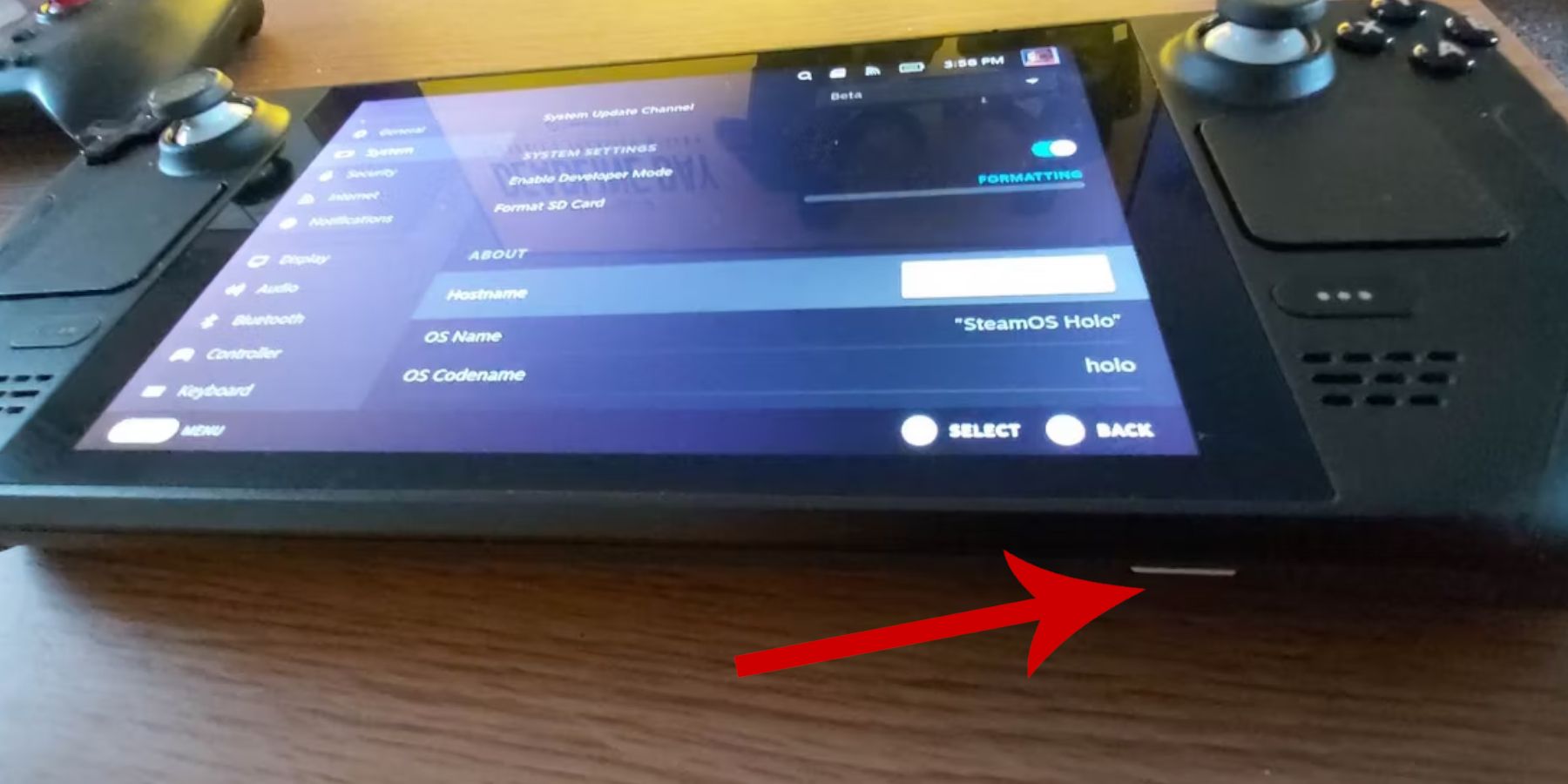 Before installing EmuDeck, ensure you've completed these steps:
Enable Developer Mode: Navigate to Steam > System > System Settings > Enable Developer Mode. Then, within the Developer menu, enable CEF Remote Debugging. Restart your Steam Deck.
Recommended Equipment: An A2 MicroSD card (or external HDD connected via dock) for storing ROMs and emulators is highly recommended to preserve internal SSD space. A keyboard and mouse simplify file transfers and artwork management. Legally acquire your Game Gear ROMs.
Installing EmuDeck
 Follow these steps to install EmuDeck:
- Switch to Desktop Mode (Steam button > Power menu > Switch to Desktop).
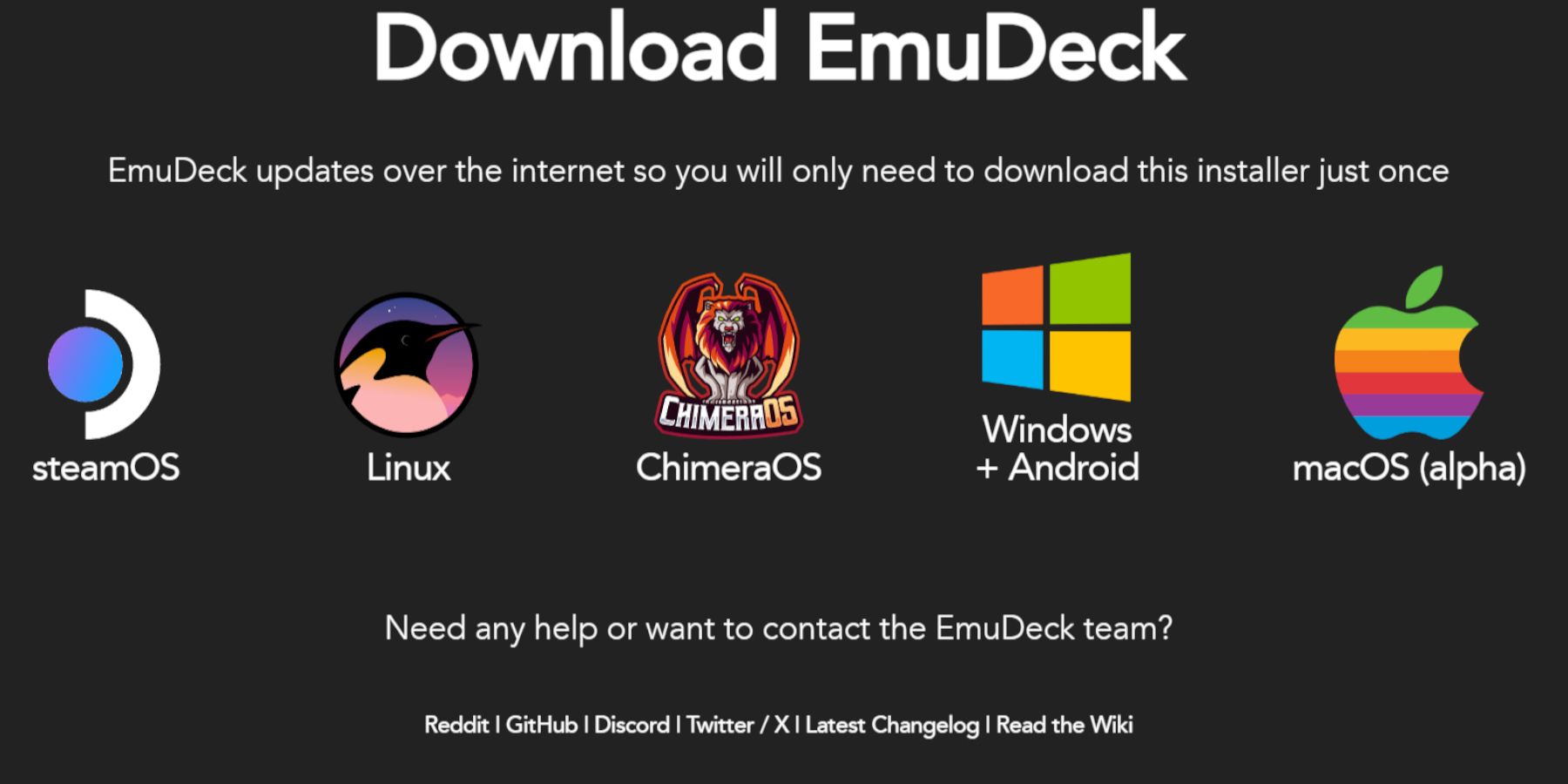
- Download EmuDeck from their website.
- Choose the SteamOS version and select "Custom Install."
- Select your SD card (Primary) as the installation location.
- Choose your desired emulators (RetroArch, Emulation Station, Steam ROM Manager are recommended).
- Enable "Auto Save."
- Complete the installation.
Quick EmuDeck Settings
Within EmuDeck, access Quick Settings and configure the following:
- Enable AutoSave.
- Enable Controller Layout Match.
- Set Sega Classic AR to 4:3.
- Turn on LCD Handhelds.
Transferring ROMs and Using Steam ROM Manager
 Transfer your Game Gear ROMs to the
 /Emulation/ROMs/gamegear folder on your SD card. Then:
- Open EmuDeck and launch Steam ROM Manager.
- Close the Steam Client when prompted.
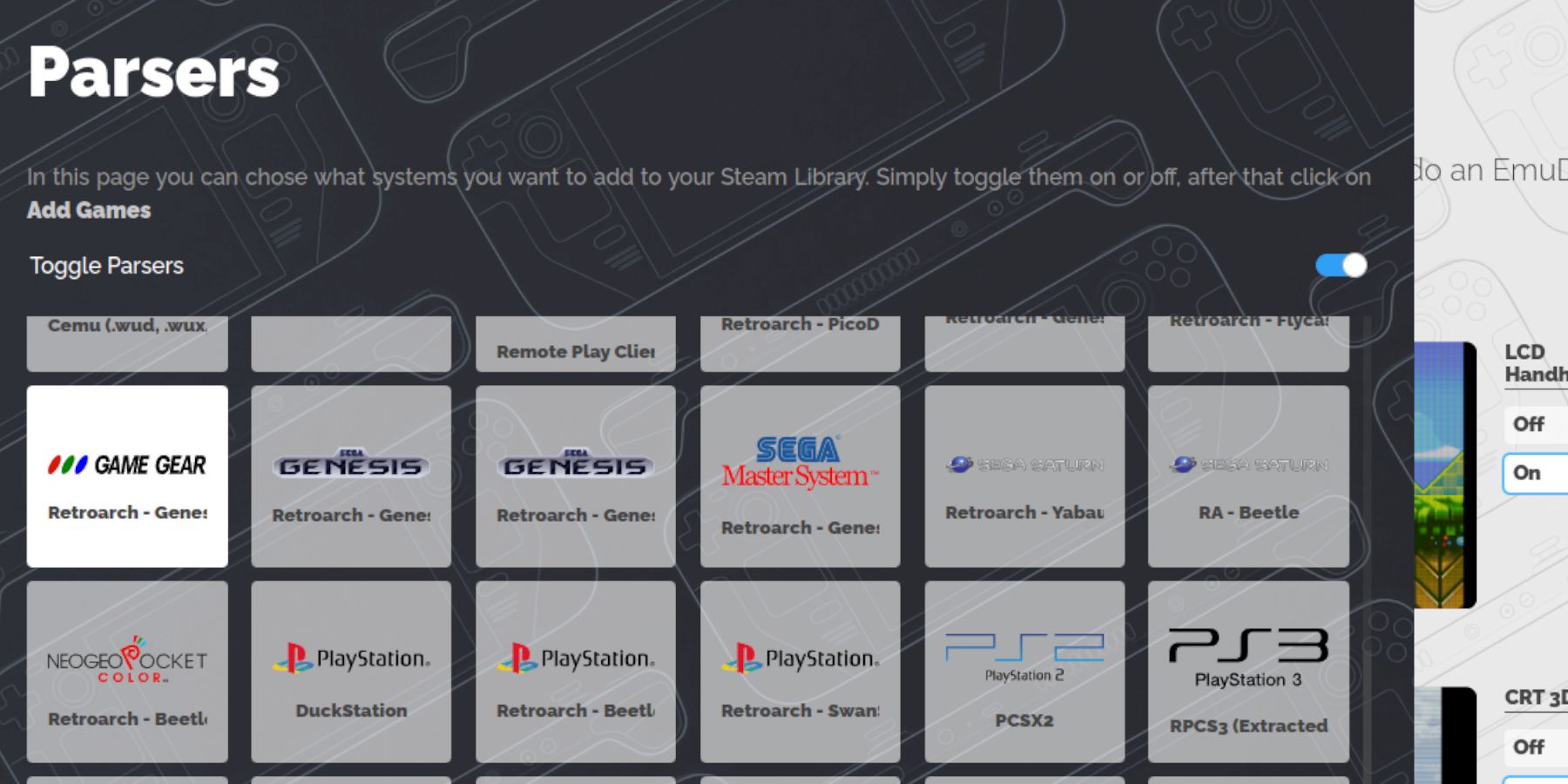
- Select the Game Gear icon on the Parsers screen.
- Add your games and parse them.
- Review artwork and save to Steam.
Fixing Missing Artwork
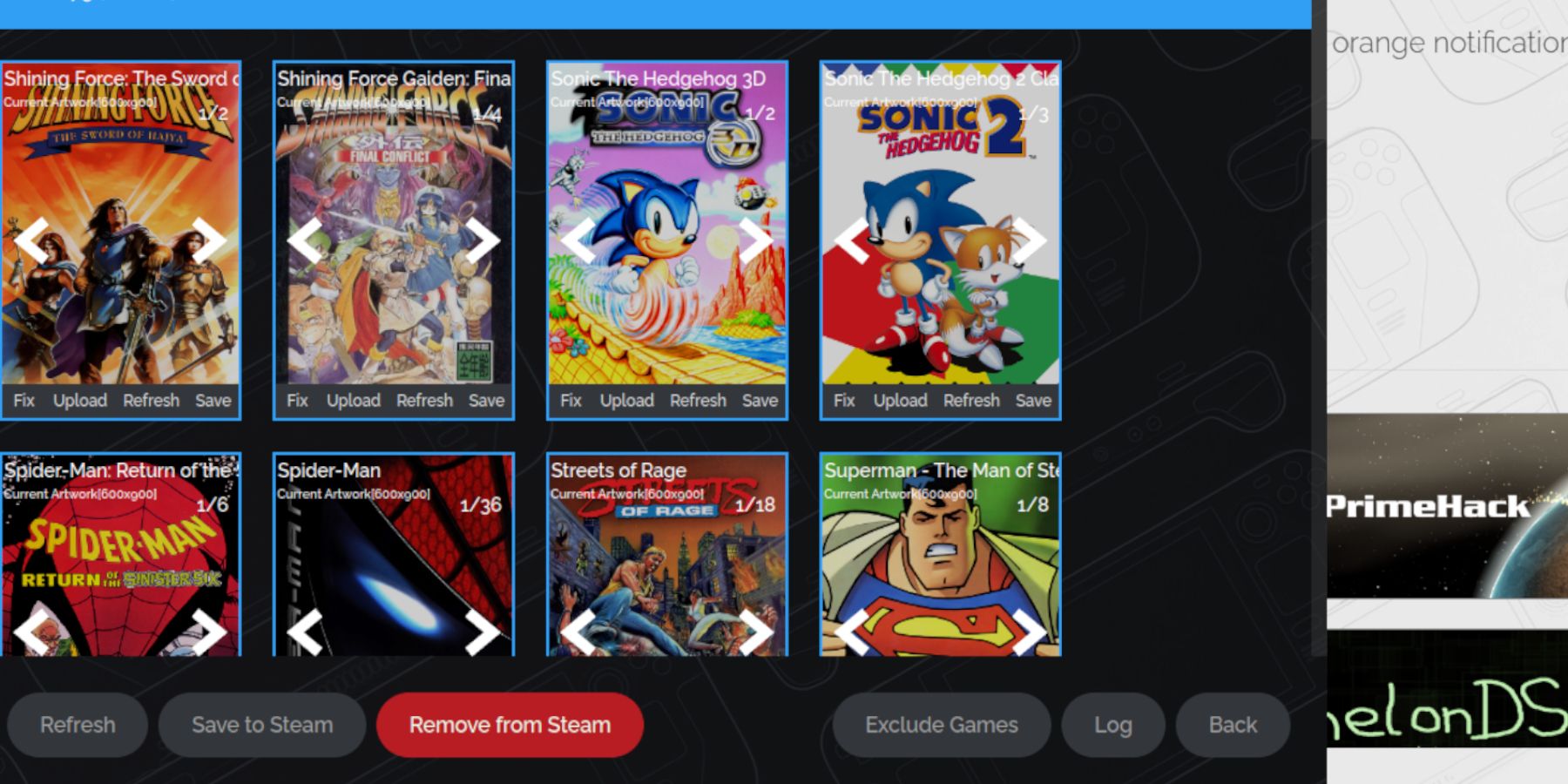 If artwork is missing or incorrect:
- Use the "Fix" function in Steam ROM Manager to search for and download correct artwork.
- Ensure ROM filenames don't contain numbers before the game title, as this can interfere with artwork detection. Manually rename if necessary.
- If artwork is still missing, manually download it, save it to the Steam Deck's Pictures folder, and upload it through Steam ROM Manager.
Playing Your Games
- Switch to Gaming Mode.
- Access your Game Gear games via the Steam Library's Collections tab.
- Select a game and play.
Optimizing Performance (60 FPS)
To achieve a smoother 60 FPS experience:
- Access the Quick Access Menu (QAM).
- Go to Performance.
- Enable "Use per-game profile."
- Set the Frame Limit to 60 FPS.
Installing Decky Loader and Power Tools
 For enhanced performance and features:
- Switch to Desktop Mode.
- Download Decky Loader from its GitHub page.
- Run the installer and choose "Recommended Install."
- Restart your Steam Deck in Gaming Mode.
- Access Decky Loader via the QAM, open the store, and install the Power Tools plugin.
Configuring Power Tools
Within Power Tools, disable SMTs, set the number of threads to 4, enable manual GPU clock control (setting the frequency to 1200), and enable per-game profiles.
Recovering Decky Loader After a Steam Deck Update
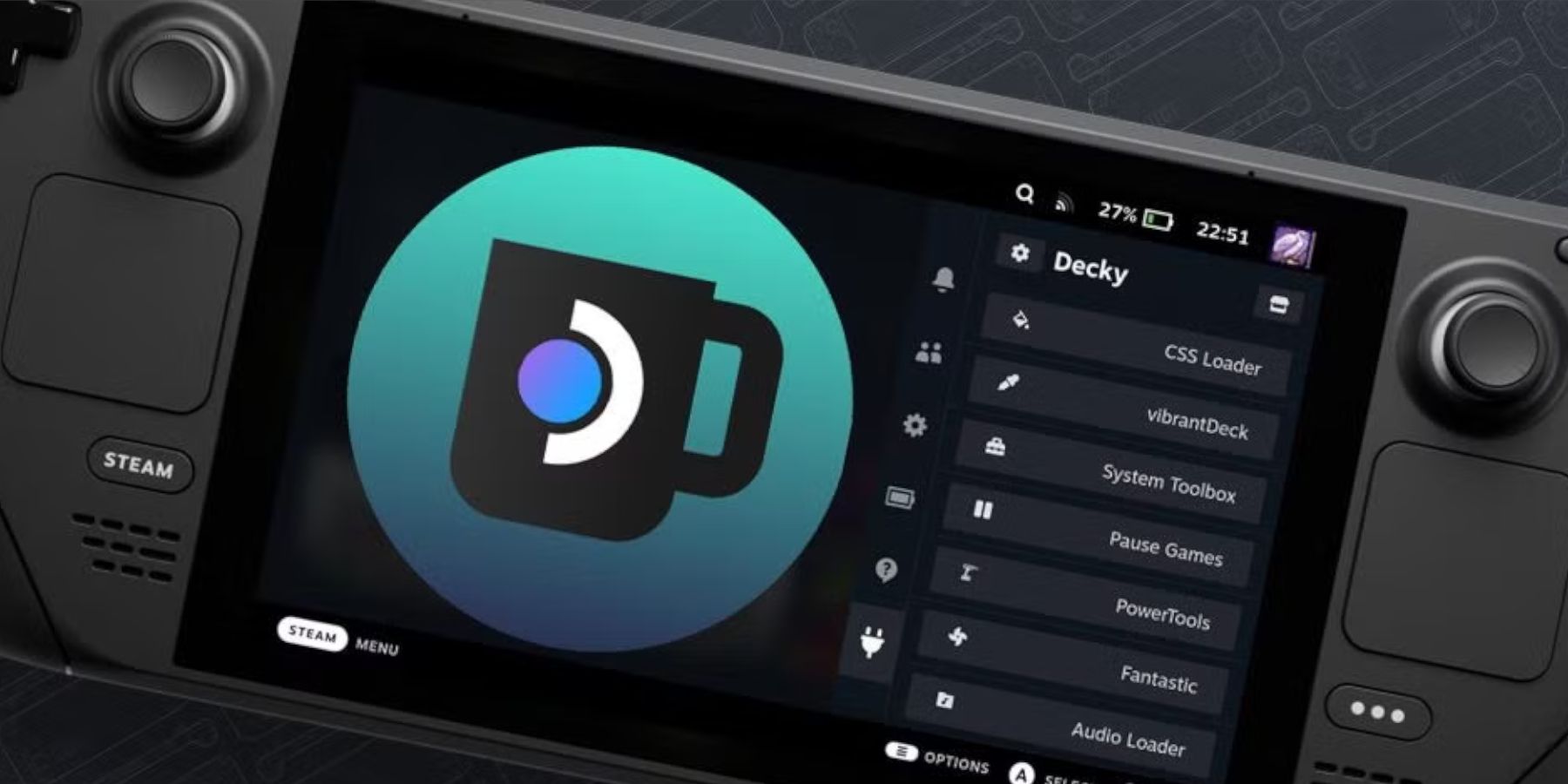 If a Steam Deck update removes Decky Loader:
- Switch to Desktop Mode.
- Download Decky Loader again.
- Run the installer using
sudo. (You may need to set a sudo password if you haven't already.) - Restart your Steam Deck.
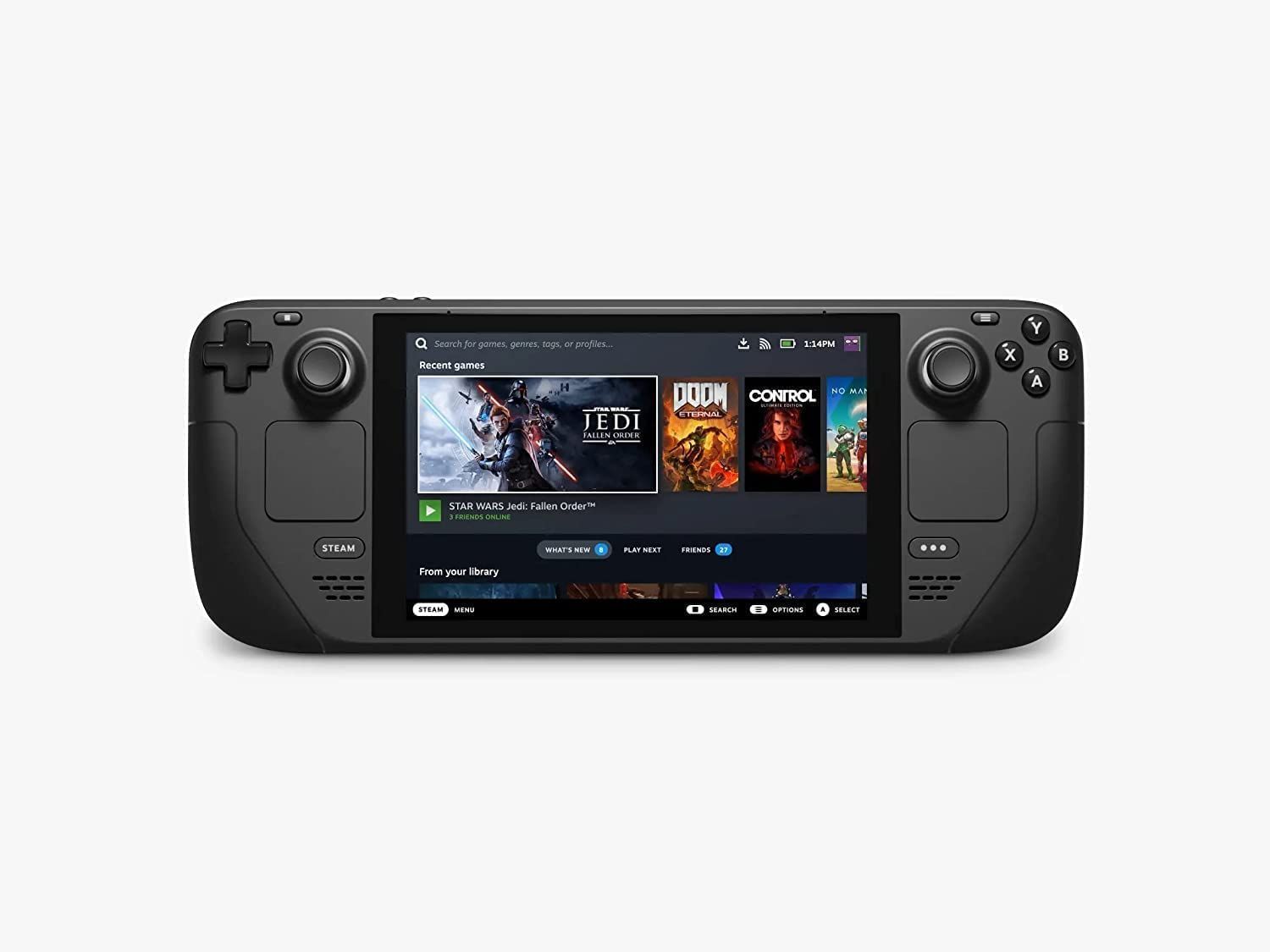 Enjoy your Game Gear games on your Steam Deck!
Latest Articles
Cardinals Monitor Conclave as Future Election Prep
Edward Berger's gripping papal thriller Conclave captivated audiences last year, offering a rare glimpse into Catholicism's most secretive ceremony – the ritualized election of a new pope. With real-world cardinals now preparing for an actual conclav
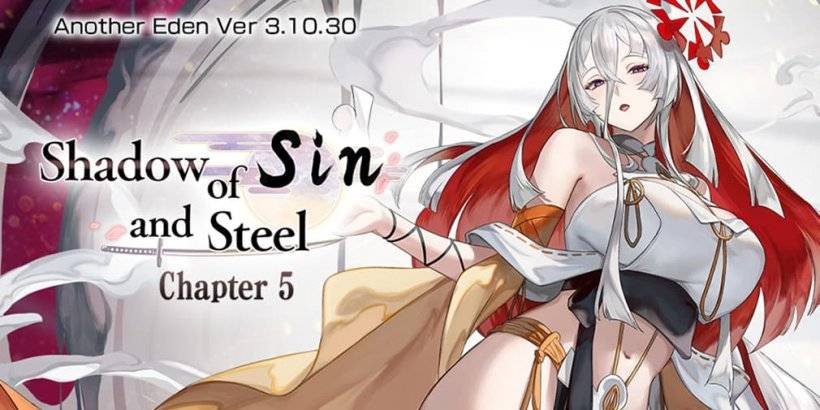
Another Eden Celebrates 6th Anniversary With New Hero
(注:严格控制在50字符内,使用"celebrates"更简洁,"hero"比"character"更具游戏语境新闻感,保留专有名词"Another Eden"原格式,符合SEO和新闻标题规范)
Another Eden marks its sixth global anniversary with exciting new contentNew character debuts alongside Shadow of Sin and Steel Chapter 5The globally popular RPG Another Eden reaches a major milestone celebrating six years since its international lau
Marvel Rivals Fans Tire of Mister Fantastic Memes
Marvel Rivals players have just wrapped up their first weekend with the newly playable Mister Fantastic and Invisible Woman, though some are finding it hard to view Reed Richards with the same gravitas as other heroes.The elastic scientist joined the
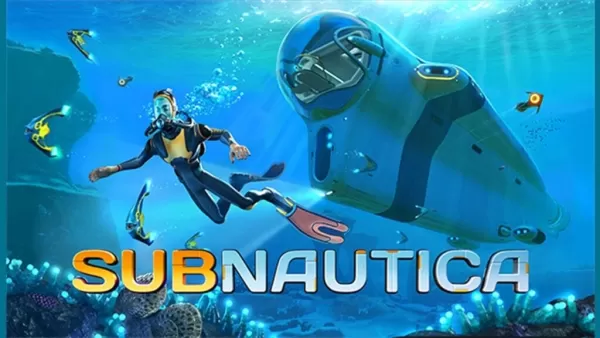
Subnautica Launches Mobile Pre-Registration
Subnautica's deep-sea adventure is finally making its way to mobile devices. First launching on PC and Mac in 2018, this acclaimed survival game became an instant classic. It later expanded to PlayStation, Xbox, and next-generation consoles, followed

Meow Rangers: Android Release for Idle RPG
Meow Rangers is a new idle rhythm action RPG now available on Android and iOS. This mobile autobattler takes place in a world invaded by sinister monsters, prompting a squad of musically gifted feline warriors to rise up and combat the evil forces.Ca
Charlie Cox Confirms Daredevil: Born Again Season 2 Filming Wraps
The future of Disney's Daredevil revival has become uncertain following a curious remark from series star Charlie Cox.Speaking at GalaxyCon, Cox referred to the upcoming second season of Daredevil: Born Again—scheduled for Disney+ in 2026—as the show
Latest Games
Football Games 2024 Offline
Sports丨49.6 MB

갓오브하이스쿨: 리부트
Role Playing丨175.7 MB

성녀 키우기
Simulation丨1.0 GB
Train your Brain - Attention
Trivia丨64.9 MB

Word Across
Word丨73.1 MB

Breaking The Friend Zone
Casual丨315.70M

Maya’s Mission
Casual丨64.57M










Top News
MORE +

01
02-03
Roblox: Anime Adventures Codes (January 2025)
Anime Adventures Codes: A Comprehensive Guide to Free Gems and Rewards
This guide provides an up-to-date list of working and expired Anime Adventures codes in Roblox. Redeeming these codes grants valuable in-game gems and other rewards, giving you a head start in your adventure.
Updated January 5,
02
05-26
Enhance Your MU Immortal Experience with BlueStacks Features
MU Immortal captures the essence of classic MMORPG gameplay that fans adore—leveling up, enhancing stats, and crafting your ideal character. Designed primarily for mobile, the game truly shines when played on a PC using BlueStacks, thanks to an array of tools that streamline and enhance your gaming
03
05-16
"Clair Obscur: Expedition 33 Hits 1 Million Sales in 3 Days"
Clair Obscur: Expedition 33 has taken the gaming world by storm, achieving a phenomenal opening weekend by selling over 1 million copies just three days after its launch. This remarkable feat cements its status as the highest player-rated game of early 2025. Dive deeper into the journey of this grou
04
04-21
Roblox Anime Genesis: January 2025 Codes
Dive into the thrilling world of Anime Genesis, a dynamic tower defense game on Roblox where you assemble a squad of your favorite anime characters to fend off menacing monsters. Whether you're tackling levels solo or teaming up with friends, you'll earn gems that you can use to summon new heroes, e
05
01-20
New DLC and Preorder for FANTASIAN
FANTASIAN Neo Dimension: DLC and Pre-order Information
While anticipation for extra content is high, a FANTASIAN Neo Dimension DLC or story expansion is unlikely. Mistwalker head Hironobu Sakaguchi has stated his preference against sequels, aiming for complete, self-contained gaming experiences.
Topics
More +